
Shopify Combined Listings: The Complete Guide (Including Stores Without Plus)
If you sell the same jacket in six colors and each color is its own product, your store has a problem shoppers feel immediately: six near-identical cards in the collection grid, and no way to switch from Olive to Navy without hitting the back button.
Combined listings are Shopify’s answer to that. They’re also, for most merchants, unavailable — the native Combined Listings app requires a Shopify Plus plan. This guide covers what combined listings actually do, the precise limits nobody mentions until you hit them, and what your options are if you’re on Basic, Grow or Advanced.
#What a combined listing is
A combined listing joins several separate products into one storefront listing using a parent / child structure.
- Child products are the products you already have — one per color, model or dimension. Each keeps its own URL handle, its own images, its own title, and its own inventory. Each can still be merchandised on its own.
- Parent product is created when you build the combined listing. It ties the children together.
When a shopper visits any product in the group, they see a single product page with all the options available across the whole group. Add to cart, checkout and orders all reference the child product, not the parent.
That last detail matters more than it sounds. Per Shopify’s developer documentation, parent products can’t be purchased, hold no inventory, and carry no sales data of their own. All reporting stays on the children — so your analytics don’t break, but you also can’t report on the group as a unit.
One useful side effect: a child product can have three options and the parent adds three more, giving you six options total on the visible listing. If you’ve been fighting Shopify’s three-option ceiling, this is the native way around it.
#The eligibility wall
Here’s the part that sends most merchants looking for an alternative. From Shopify’s own docs:
Combined listings are available only to stores on a Shopify Plus plan.
Shopify’s Help Center is equally direct: you must be on a Plus or enterprise commerce plan, your store must use the Online Store sales channel, and you need a compatible theme.
| Plan | Native combined listings |
|---|---|
| Basic | No |
| Grow | No |
| Advanced | No |
| Plus | Yes |
| Enterprise | Yes |
If you’re not on Plus, the native app isn’t a matter of finding the right setting. It won’t appear for your store at all, and grouping products as variants becomes either a theme development project or an app decision.
#What the native app can’t do — even on Plus
Worth knowing before you plan around it, because these limits are hard-coded:
- Online Store channel only. Combined listings can’t be sold through Shopify POS, other third-party sales channels, or with subscriptions.
- 60 child products maximum per combined listing.
- 2000 variants maximum across all child products in a listing.
- Three options on the parent product.
- No bundles. A combined listing product can’t be a bundle.
- No nesting. A combined listing can’t be included in another combined listing.
- Sales track on children only, never the parent.
- Theme requirements. Combined listings display on free Shopify themes at version 15.0.0 or later. Any other theme may need code changes to render them, which means going back to your theme developer.
None of these are dealbreakers for a typical apparel catalog. But if you sell in-store through POS, run subscriptions, or have a heavily customized theme, check them before you commit.
#Combined listings vs. variants vs. product options
Three different tools, constantly confused with each other. Pick by the question you’re actually trying to answer.
| You need | Use | Why |
|---|---|---|
| Size and color on one product | Native variants | Shopify handles up to three options natively; the per-product variant cap was raised to 2,048 in late 2025, up from 100 |
| A fourth or fifth option (size, color, material, length) | Combined listings or an options app | The 2,048 variant increase did not change the three-option limit |
| Each color to have its own URL, images and Google Shopping entry | Combined listings | Variants share one product URL; children keep separate ones |
| Free-text engraving, file upload, add-on checkbox | A product options app | These aren’t variants at all; they’re line item properties |
| Products grouped visually with swatches, on any plan | A combined-listing app | Native is Plus-only |
The most common mistake is reaching for a product options app when the real requirement is separate URLs per color. Options apps give you inputs; combined listings give you separate, individually rankable products presented as one.
#Setting up native combined listings (Plus)
If you are on Plus, the flow is short:
- Create the child products in your Shopify admin, one per option value — one product per color, each with its own images and handle. Do this first; the app groups existing products.
- Install the Combined Listings app from Shopify and create a new combined listing.
- Define the option and its values — the axis your products are divided by (Color, Model, Dimension) and the value each child represents.
- Add your child products to each option value.
- Publish the parent product. The app prompts you to do this, and it’s the step people miss. An unpublished parent means nothing changes on the storefront.
- Confirm your theme renders it. Free themes at 15.0.0+ work out of the box. Others show a banner in the admin telling you the theme needs an upgrade or a code change.
Test on a duplicate theme first, especially if your product template has been customized.
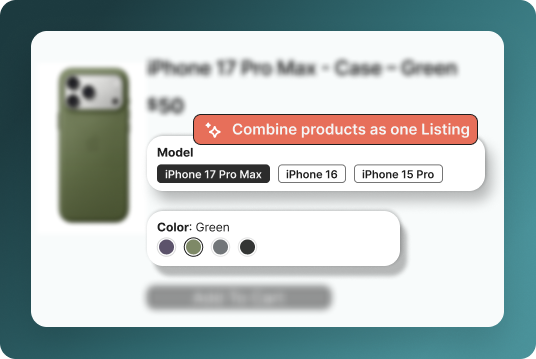
#Combined listings without Shopify Plus
Three real options, in increasing order of how much of your time they cost.
#Option 1: manual product metafields plus theme code
The DIY route, and it’s genuinely viable for a small catalog.
- Create a product metafield of type Product (list of products) — call it something like
related_colors. - On each product, populate it with the other products in its group. A six-color jacket means six products, each referencing the other five.
- Edit your product template to loop over that metafield and render a link for each related product, using the referenced product’s featured image as the swatch.
- Repeat the work for collection cards if you want swatches in the grid, which is a second, harder template change.
What it costs you: the metafields are bidirectional by hand, so every new color means editing every existing product in the group. Miss one and the group breaks asymmetrically — Navy links to Olive but Olive doesn’t link back. Theme updates can overwrite your snippet. And you still don’t get collection grid swatches without more work.
For under a dozen groups managed by someone comfortable in Liquid, this is fine. Past that, the maintenance becomes the reason you stop keeping it accurate.
#Option 2: tag-based grouping
A lighter variant of the same idea: tag every product in a group with a shared tag like
group-jacket-alpine, then have your theme query products by tag to build the swatch row. Less
per-product data entry than metafields, and adding a color means adding one tag.
The tradeoff is control. Tags carry no ordering, no option labels, and no per-value display data, so your swatch row is whatever order Shopify returns. It works better for “here are the other colors” than for a real multi-option picker.
#Option 3: a combined-listing app
An app does the grouping outside the product data model, so no metafield bookkeeping and no permanent theme fork. What you should look for, since not every app in this category does all of it:
- Swatches on collection and search pages, not just the product page. This is where most of the conversion gain lives — a shopper who can see all six colors in the grid doesn’t need to open six products.
- Separate URLs preserved. If an app collapses your products into one URL, you lose the SEO and Google Shopping benefit that made you list them separately in the first place.
- Auto-grouping from existing titles or tags, so setting up 200 products isn’t 200 manual steps.
- Theme editor configuration rather than code injection, so a theme update doesn’t undo your setup.
- Multiple swatch types — color, image, button, dropdown — because a wood-grain finish and a size need different controls.
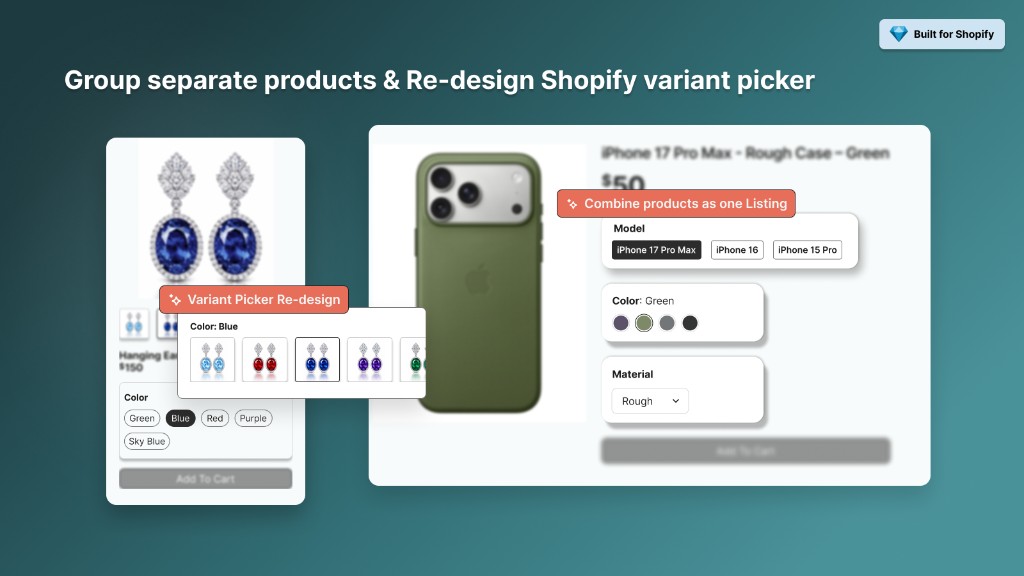
Groopie is our app in this category, built for exactly the non-Plus case: it links separate products into one listing, puts color and image swatches on product, collection, search and home pages, and keeps every product’s own URL intact. There’s a free plan, so you can check the behavior on your own theme before deciding anything. Details are on the Groopie app page.
#Does this hurt SEO?
This is the most common objection, and the answer is that combined listings are usually an SEO improvement — but for a reason worth understanding.
Separate products keep separate URLs. Each color keeps its own handle, title, description and images, so each can rank for its own long-tail query (“alpine jacket olive”) and each gets its own entry in Google Shopping and other feeds. Collapse those six products into one product with six variants and you have one URL competing for all of it.
The risk is thin duplication, not the grouping itself. Six products whose descriptions are identical except for a color word give Google six near-duplicate pages. That was true before you grouped them. Fix it the ordinary way: write at least one genuinely color-specific paragraph per product, use color-specific image alt text, and give each product a distinct title and meta description.
Don’t canonicalize children to the parent. The parent product isn’t purchasable and isn’t the page you want ranking. Let the children stay canonical to themselves.
Watch internal linking. After grouping, make sure crawlers can still reach each child product
through your collection pages. If your swatch implementation renders as JavaScript with no real
<a href> per product, you’ve made those products harder to discover. Anchor tags, always.
#Common problems
Nothing changed on the storefront. On native, the parent product isn’t published. Publish it.
The admin shows a theme compatibility banner. Your theme is below 15.0.0 or isn’t a free Shopify theme. Update it, ask your theme developer, or use an app that doesn’t depend on native support.
Combined listings don’t appear in POS or another sales channel. Expected — the native feature is Online Store only. There’s no setting for this.
Filtering behaves oddly. Apps that modify product pages, and filtering built on Shopify’s Search & Discovery app, don’t always play well with combined listings. Test your filters after setup, not before.
I need a seventh option. Six is the native ceiling (three on the child, three on the parent). Past that you’re looking at a product options app or line item properties, not combined listings.
#Which approach fits you
| Situation | Best move |
|---|---|
| On Plus, free theme 15.0.0+, standard catalog | Native Combined Listings app |
| On Plus, but you sell through POS or subscriptions | App — native won’t cover those channels |
| Not on Plus, under ~10 groups, comfortable with Liquid | Manual metafields + theme code |
| Not on Plus, growing catalog, want collection swatches | Combined-listing app |
| You only need a fourth option, not separate URLs | Product options app |
| Over 60 products in one group | App — native caps at 60 children |
#The short version
Combined listings solve a real merchandising problem: shoppers should see one product with six colors, while your store keeps six independently rankable pages. Shopify’s native implementation does this well and costs nothing extra — if you’re on Plus, on a current free theme, and selling only through your online store.
Everyone else is choosing between theme code they’ll maintain forever and an app that handles it. Either is a legitimate answer. What isn’t is leaving six identical cards in your collection grid and hoping shoppers click through all of them.
If you want to see what grouping does to your own collection page before committing to anything, the free plan on Groopie is a low-risk way to test it on your live theme.